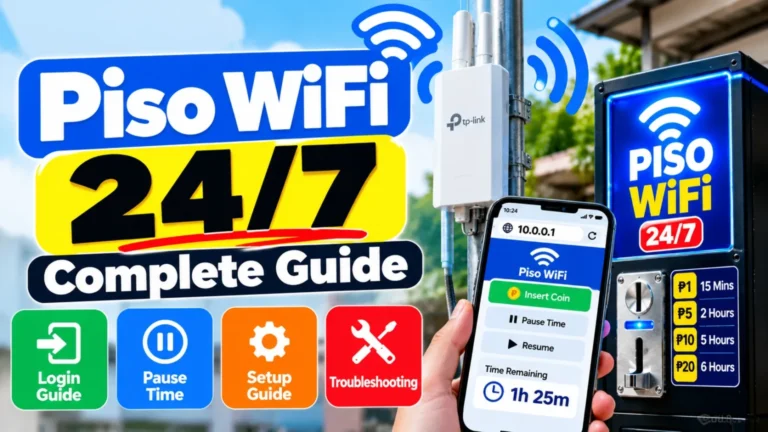
10.0.0.1 Admin: Piso Login, Settings and Troubleshooting Guide
The 10.0.0.1 Admin page is the control panel for a router. It operates for home routers and for “Piso” Wi-Fi vending machines. Here is an explanation of login steps, default passwords, settings, and fixes.
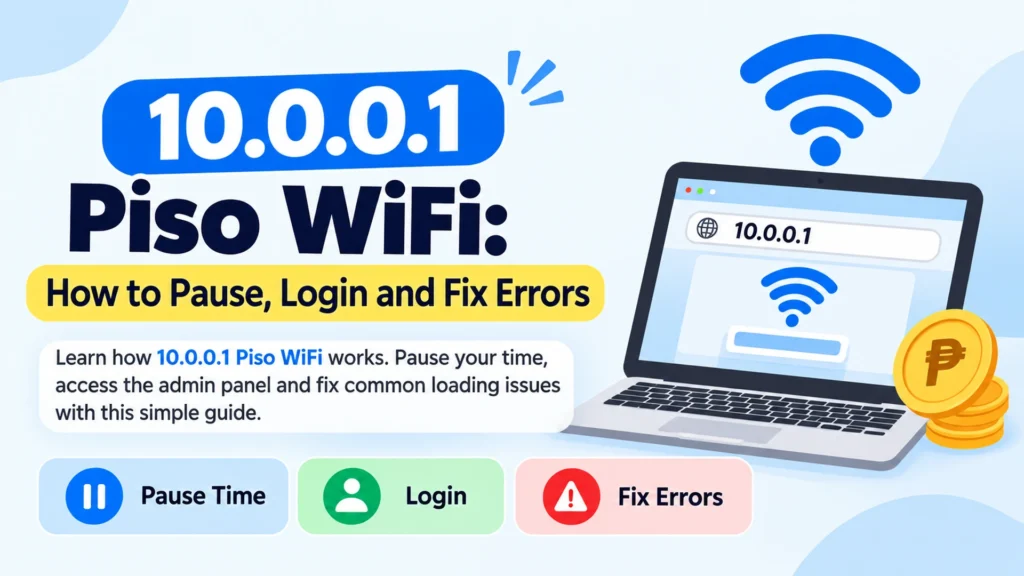
of 10.0.0.1 or 10.0.0.1 Admin Panel
10.0.0.1 is a private IP address. As the default gateway, many routers and modems use it. Such examples are Xfinity (Comcast), Arris, and Cisco devices. On the other hand, the 10.0.0.1 Admin panel is a webpage hosted inside the router. Think of it as the dashboard of the home internet. Type the address into a browser while on your network. A login screen will appear.
Uses of 10.0.0.1 in the Philippines
Most Piso Wi-Fi machines use this address. Examples include LPB Piso Wi-Fi and AdoPiSoft vending builds. Few TP-Link, PLDT, Globe, and Converge routers are used as access points.
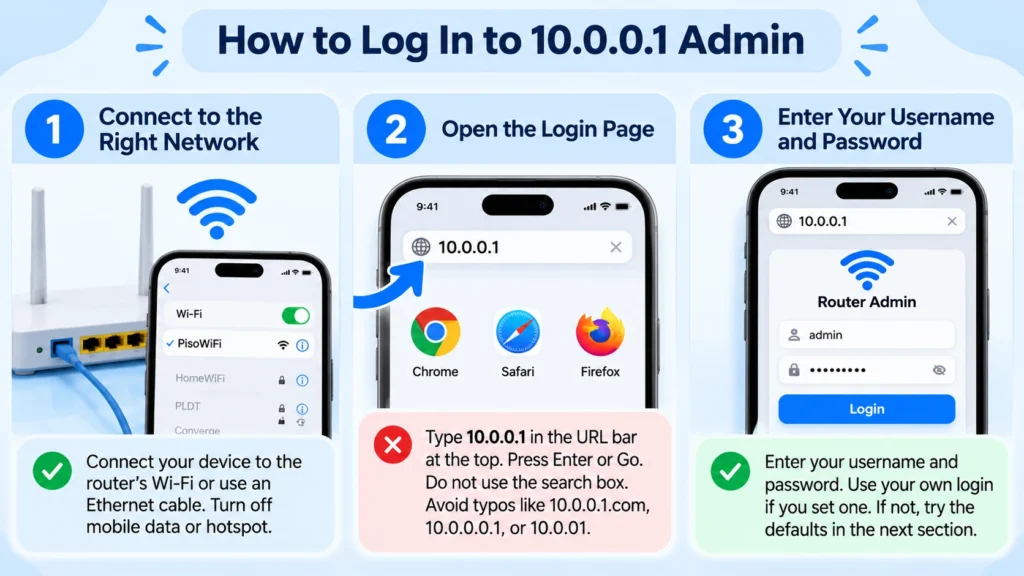
How to Log In to 10.0.0.1 Admin
Step 1: Connect to the Right Network
Connect your device (phone, computer) to the router through an Ethernet cable. Confirm that you have switched off mobile data or any cellular hotspot first. Your device must connect to the local network only.
Step 2: Open the Login Page
Go to Chrome, Safari, or Firefox, then type 10.0.0.1 in the URL bar at the top. Press Enter or Go. Never use the search box in the middle of the page. Typos like 10.0.0.1.com, 10.0.0.0.1, or 10.0.01 will turn into search terms. The dashboard will not open. Piso WiFi operators must use the backend path rather than http://10.0.0.1/admin.
Step 3: Enter Your Username and Password
Use your own login if you set one. If not, try the defaults in the next section.
Default 10.0.0.1 Admin Login Details
Default options depend on the device. Firstly, check the white sticker on the back or bottom of the router. It often lists the exact login.
Router Defaults
| Username | Password |
| admin | admin |
| admin | password |
| Cusadmin | Blank, or your Wi-Fi key |
Defaults for Philippine Devices
| Device Type | Username | Password |
| LPB Piso WiFi/custom builds | admin | 123456789 or admin |
| TP-Link access point | admin | admin |
| PLDT / Globe modem | admin | admin, or see sticker |
AdoPiSoft Defaults
| Older Builds | Newer Builds |
| username (admin), password (admin) | username (administrator), password (admin1234) |
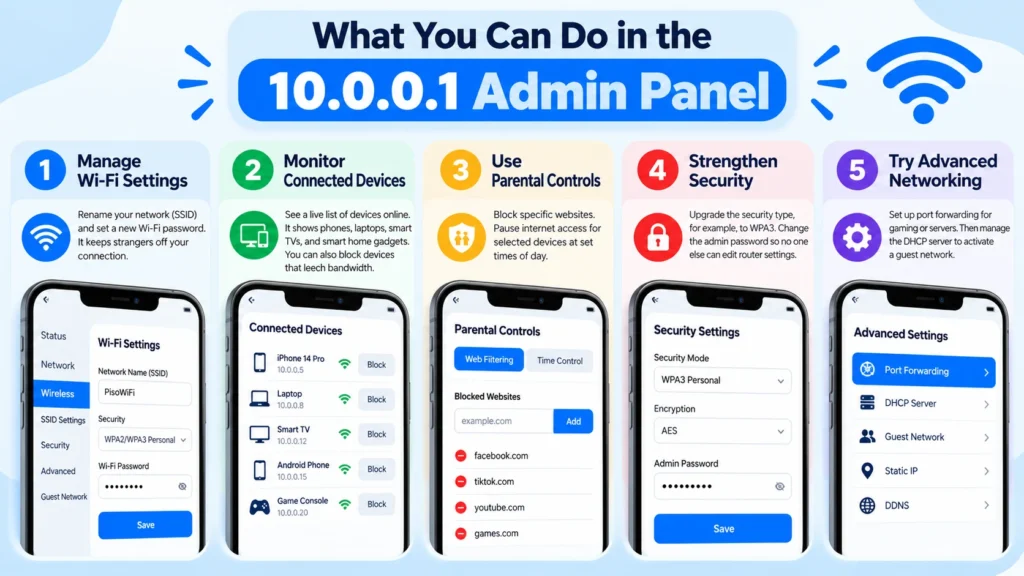
What You Can Do in the 10.0.0.1 Admin Panel
Manage Wi-Fi Settings
Rename your network (SSID) and set a new Wi-Fi password. It keeps strangers off your connection.
Monitor Connected Devices
See a live list of devices online. It shows phones, laptops, smart TVs, and smart home gadgets. You can also block devices that leech bandwidth.
Use Parental Controls
Block specific websites. Pause internet access for selected devices at set times of day.
Strengthen Security
Upgrade the security type, for example, to WPA3. Change the admin password so no one else in the house can edit router settings.
Try Advanced Networking
Set up port forwarding for gaming or servers. Then manage the DHCP server to activate a guest network
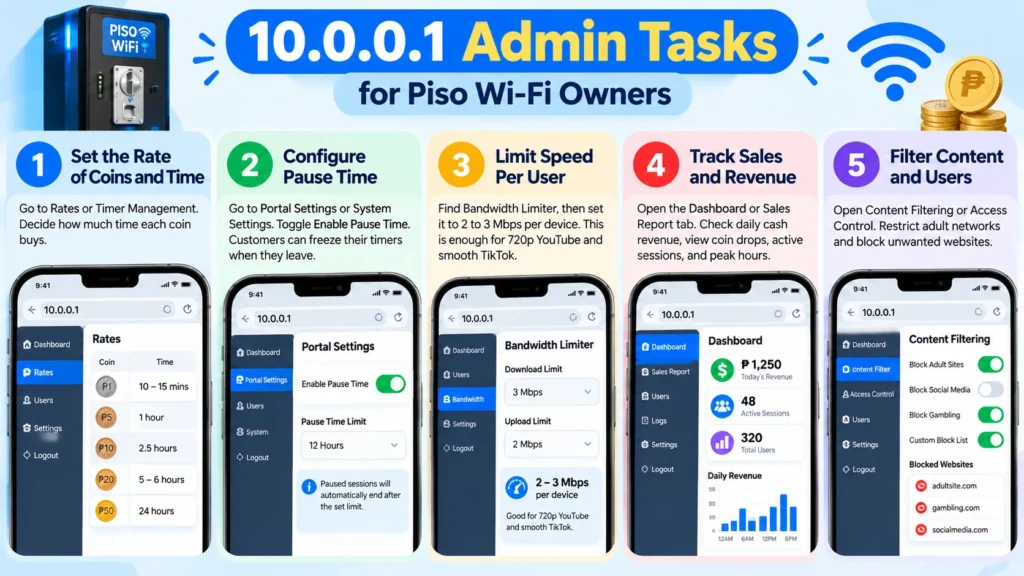
10.0.0.1 Admin Tasks for Piso Wi-Fi Owners
Operators use the dashboard as a business command center that helps them protect their internet source and grow daily income.
Set the rate of Coins and Time
Go to Rates or Timer Management. Decide how much time each coin buys. Typical rates in the Philippines are:
- ₱1 = 10 to 15 minutes
- ₱5 = 1 hour
- ₱10 = 2.5 hours
- ₱20 = 5 to 6 hours
- ₱50 = 24-hour day pass
Configuring Pause Time
Go to Portal Settings or System Settings. Toggle Enable Pause Time. Customers can then freeze their timers when they leave.
Add an expiry limit to stop users from hogging IP slots. Many operators clear paused sessions at midnight. Others clear them after 12 hours of inactivity.
Limit Speed Per User
Find Bandwidth Limiter, then set it to 2 to 3 Mbps per device. This is enough for 720p YouTube and smooth TikTok. It also prevents lag for other paying users.
Tracking of Sales and Revenue
Open the Dashboard or Sales Report tab. Check daily cash revenue without opening the coin vault. View coin drops, active sessions, and peak business hours.
Filter Content and Users
Open Content Filtering or Access Control. Restrict adult networks. Filter adult sites at the gateway. This helps stop your internet line from being marked or slowed.
Fixing the login problems of 10.0.0.1 Admin
The Page Does Not Open
- Check the customer’s router network.
- Make sure you typed the address in the URL bar.
- Try other gateways: 192.168.1.1, 192.168.0.1, or 192.168.10.1.
- A builder may have changed the default IP on custom machines.
The Password Fails
Ask the seller to set a custom login. If you forgot your own password, factory reset the router. Press the small Reset button with a paperclip for 10 to 15 seconds. A secondhand Piso WiFi unit may need more work. Reset the base router. Or re-flash the Raspberry Pi or Orange Pi SD card.
Fixing Piso Wi-Fi Hardware Problems
The Coin Slot Rejects Coins
- Sample coin missing: Different coin acceptors, like the CH-926, need a sample coin in the plastic slot.
- Dirty sensor: Dust or a spider web may block the optical sensor. Blow compressed air into the slot.
- Loose wiring: Check the 4-pin white connector on the back of the acceptor. It must sit tight and run cleanly to the controller board.
Coins Work, but No Internet Time Is Given
The acceptor sends pulses to the controller to check the pulse settings. For example, ₱1 sends 1 pulse and ₱5 sends 5 pulses. The dashboard must match the hardware. If not, the system will not register the money.
The Machine Freezes or Resets
Power is the top cause. Phone chargers cannot supply stable power for a single-board computer, a coin slot, and fans. Use a dedicated 12V supply with a quality 5V buck converter. Rate it at 3A to 5A.
Heat is the second cause. Vending boxes get very hot under the Philippine sun. Keep the exhaust fans running and free of dust.
Conclusion
The 10.0.0.1 Admin portal provides full control of the network. Home users can secure Wi-Fi and control devices. Piso Wi-Fi owners can set rates, cap speeds, and track earnings. Often, it maintains hardware and reviews settings. A well-managed dashboard keeps a network stable and customers happy.